Download
The installer for Windows 10 and 11 (64-bit). Install it on the PC your servers run on.
Version
Released . .
Latest version
Installer for Windows 10 and 11 (64-bit).
Coming soon
The first version hasn't been published yet. Check back shortly.
You'll also need a game key for every server; see Keys & DLC.
Installing#
- Run the file you downloaded.
- Windows may show Windows protected your PC. The installer isn't code-signed yet, so SmartScreen doesn't know it. Click More info, then Run anyway.
- Read and accept the license agreement. It sums up our Terms of Use.
- Allow it to make changes (the UAC prompt). The manager needs administrator rights to run servers as other Windows users and to see and stop their processes.
- Keep the default folder (
C:\Program Files\FS Game Server Manager) or pick another, and finish.
The manager opens and asks for two folders: the game folder (it finds it for you) and where the server profiles should go. Then add your first server. The docs take it from there.
Updating#
The manager checks this site when it starts and every 6 hours. When there's a new version you'll get a Windows notification and a bar at the top of the window. Click Install now: it downloads the update, checks it, closes, installs and opens again in about a minute.
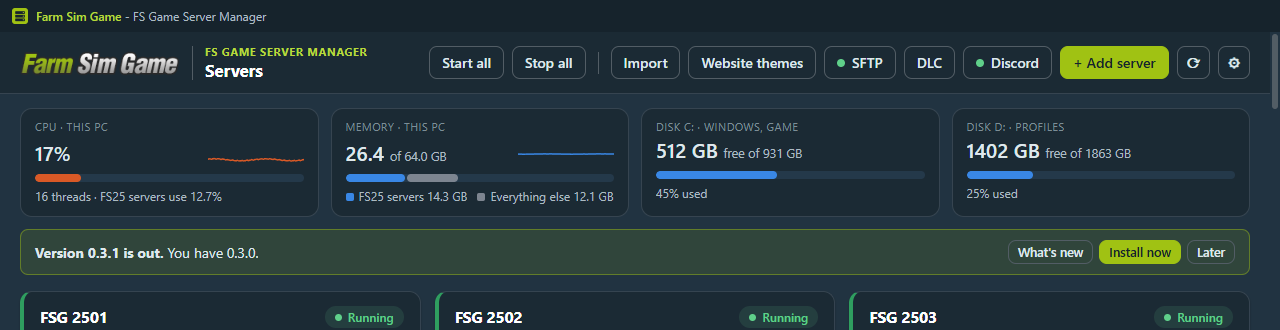
You can also download the new installer here and run it over the old version. Either way:
- Servers keep running. Only the manager closes.
- Your server list, settings, saved passwords, SFTP logins, themes, Discord bot and scheduled tasks all stay.
- The SFTP service restarts, so anyone connected gets dropped and their client reconnects.
Turn the automatic check off under Settings › Updates if you'd rather not. It never installs anything without you clicking. Check for updates in the About window (the ? button) checks right away.
Uninstalling#
Use Settings › Apps in Windows. That removes the app, its own scheduled tasks and its SFTP firewall rule. Your settings and the servers' tasks stay, so Background servers still start with Windows. Remove servers in the manager first if you don't want that.
Checking the file#
The SHA-512 of is:
To compare, run this in PowerShell in the folder you downloaded to:
Get-FileHash -Algorithm SHA512 .\FS-Game-Server-Manager-Setup-*.exeThe manager does this check by itself when it installs an update.
Changelog#
The changelog loads from the release list. If it doesn't show, the latest download above still works.